User Permissions Settings
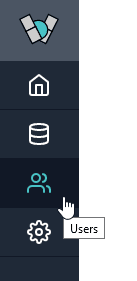
User permissions settings handles adding/removing users and what they are able to view and do within Winterface (accessible from the people icon in the navigation bar).
Add User
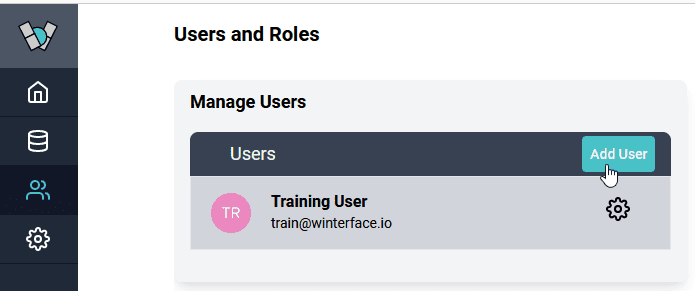
To add a new user, click on the Add User button shown below.
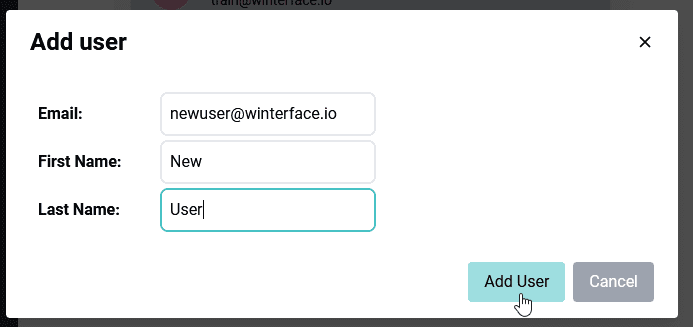
Type in the user's email address and name. Click Add User to confirm.
If the user already has an account, then they will have access the next time they log in. If they do not have an account, they just need to create a new account on the login screen and they will be automatically directed to your instance.
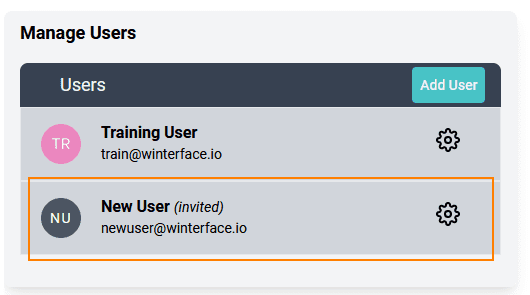
The new user will show up in the list with an (invited) tagged on to the end of their name. Once the user logs in, the (invited) tag will be removed.
Remove User
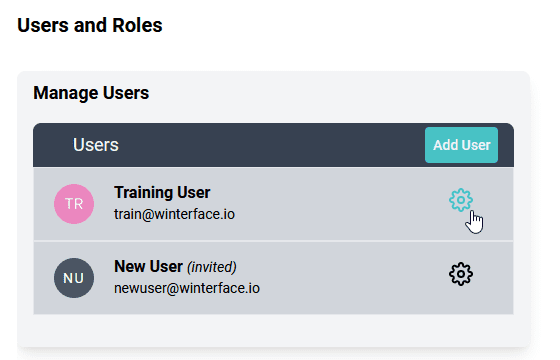
Click the gear icon next to the user you wish to remove.
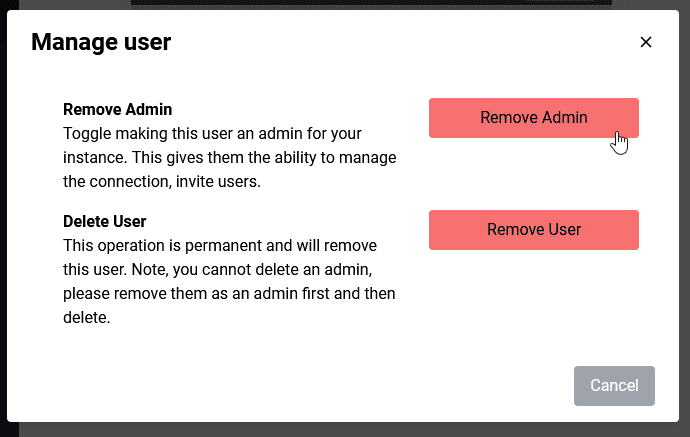
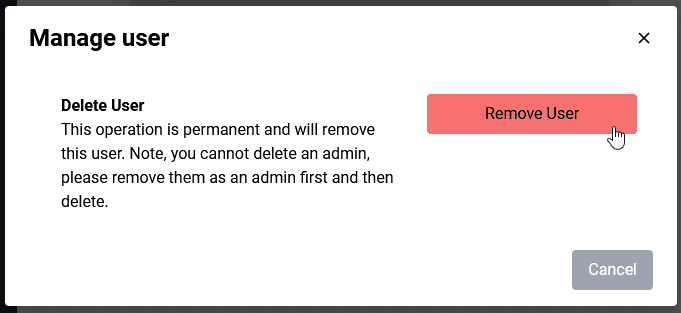
Click the Remove User button to delete the user.
Note: you cannot delete an admin account. You will need to revoke their admin privileges first (see the section below) and then delete the user.
Modify Admin Privileges
Click the gear icon next to the user you wish to modify.
If the user is already an admin, the button will say Remove Admin and will flip the user to a regular user. If the user is not an admin, the button will say Make Admin and will make the user an admin once pressed.
You must have at least one admin active at all times per instance (so the button may be unclickable if you are trying to remove the only admin).